If you're a Product Partner, you can upload and manage your product listings in the Snapplify Cloud Services Platform. This guide shows you how to:
Add new products
Edit or archive existing products
Add a new product
Single product
- Sign in to your account.
- Select New to open the product form.
- Complete the fields as follows:
| Field | Description |
| Amount | Enter the price (e.g. 29.99) |
| Code | Unique product ID (e.g. SNAPP001) |
| Currency | Full name (e.g. South African Rand) |
| Description | Short description of the product |
| Title | Product name (e.g. A4 Hard Cover Book) |
| Type | Choose either Stationery or Hardware from the dropdown |
| Vat Exempt | Update this field only if the product does not apply VAT |
Bulk import products - Small Import
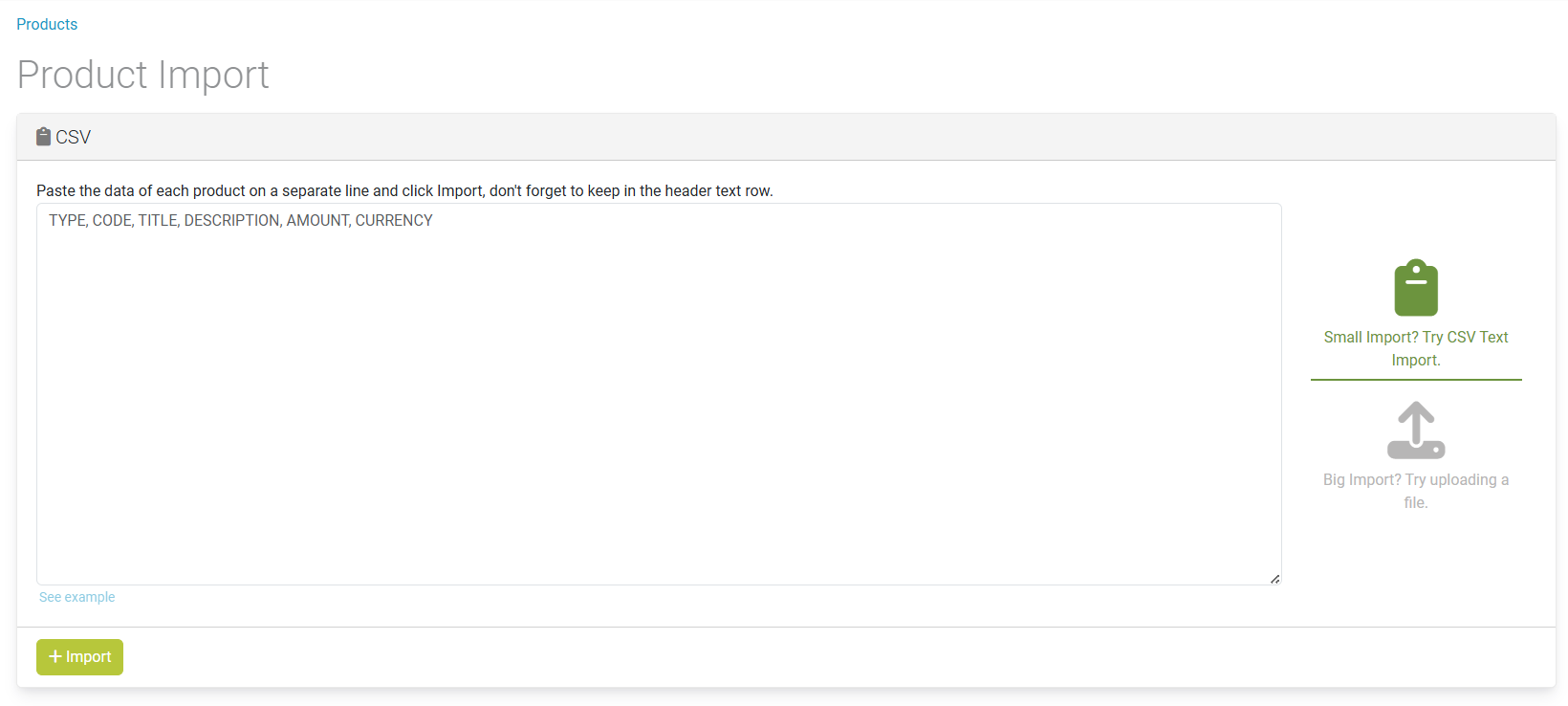
You can use the CSV import feature to upload multiple stationery or hardware products at once. Use this method to paste product data directly into a text field.
Make sure to keep the header row, and use commas between values.
Select Import then choose Small Import (CSV Text Import).
Paste your product data with the correct headers:
TYPE,CODE,TITLE,DESCRIPTION,AMOUNT,CURRENCY
Stationery,SNAP567,Red Pencil,Jumbo red colouring pencil,5.00,ZAR
Bulk import products - Big Import (CSV File Upload)
Preparing the CSV file:
- Open Excel and add your product data with the following headers:
TYPE,CODE,TITLE,DESCRIPTION,AMOUNT,CURRENCY - Fill in the rows with your product data — no currency symbols in the "Amount" field.
- Save the file as .csv (comma-separated).
Upload the CSV:
Select Import, then select Big Import.
Upload your CSV file and select Import.
Monitor the Work Task screen for progress. Wait until the task shows COMPLETED or an error message.
Edit an existing product
- In Products, find your product using the search bar or filters.
- Select the product to open its detail page.
- Select Edit.
- Update any fields (e.g. title, price, description).
- Select Save to apply changes.
Archive a product
Archived products are not visible to institutions but are kept in your product list for records.
- Open the product’s detail page.
- Select Archive.
Need help? Use the live chat in the bottom right corner of your screen. Email us at help@snapplify.com or reach out via Whatsapp +27 60 011 8065.


