Create voucher codes in Origin to distribute one or more digital products to users. Each code gives access to the selected content when redeemed.
To create a voucher in Origin, follow these simple steps: define your voucher, add the products, then activate and share it.
Step 1: Log in to Origin
- Visit scs.snapplify.com.
- Log in using your Snapplify credentials.
Step 2: Navigate to ‘Vouchers’
- Access Marketplace, and select ‘Vouchers’ from the main left menu.
Step 3: Create a New Voucher
Click ‘New Voucher’.
Give your voucher a Label (e.g. Start of Year Campaign).
Select the Code Type, Single-Code or Multi-Code:
- Single-Code: One code gives multiple user(s) access to the same product(s)
- Multi-Code: Generates individual, unique codes for product(s) within a single voucher batch. Ideal for distribution where each user needs their own code
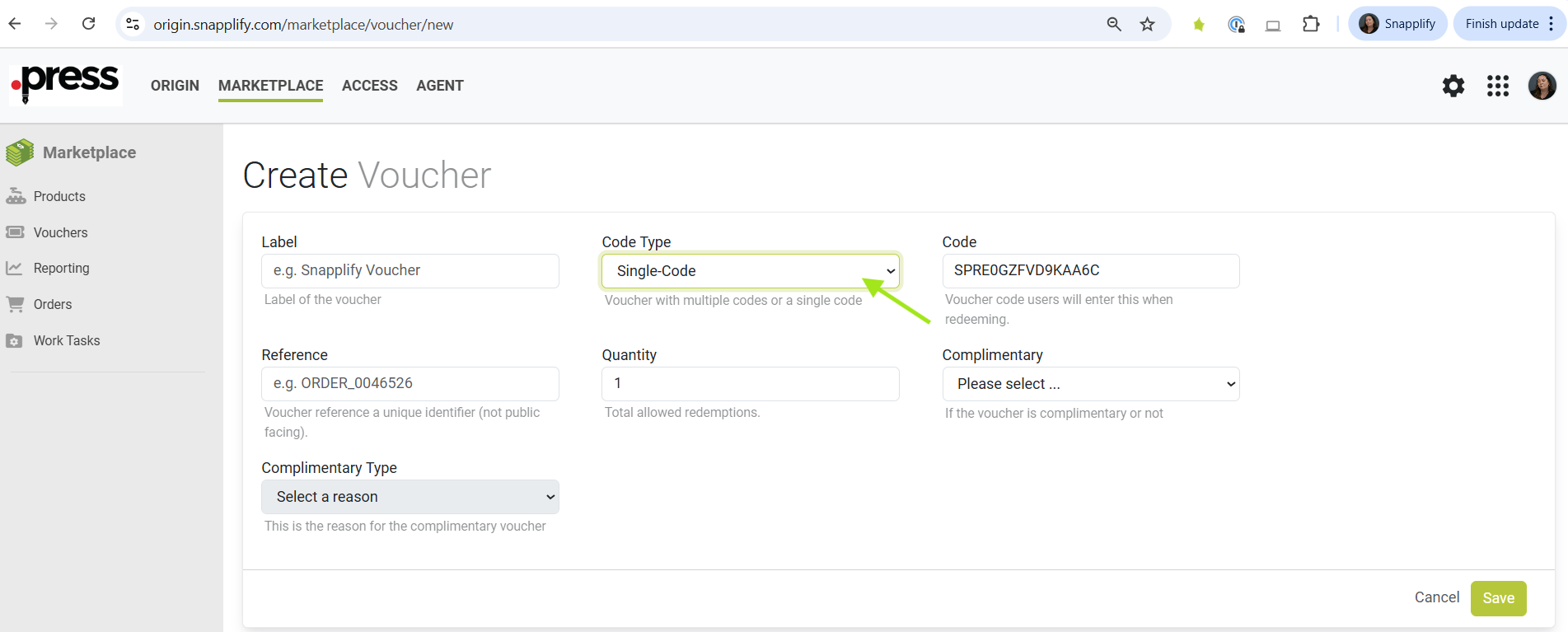
The Code is automatically generated.
Set Reference, this is not customer facing, e.g internal order reference
Set the Quantity, the number of users who can redeem the voucher code
Select whether the voucher is Complimentary or Not
If it's Complimentary, select the Complimentary Type
Click Save to create your voucher
Step 4: Add Products to your Voucher
Click on Add Products to add products to your voucher
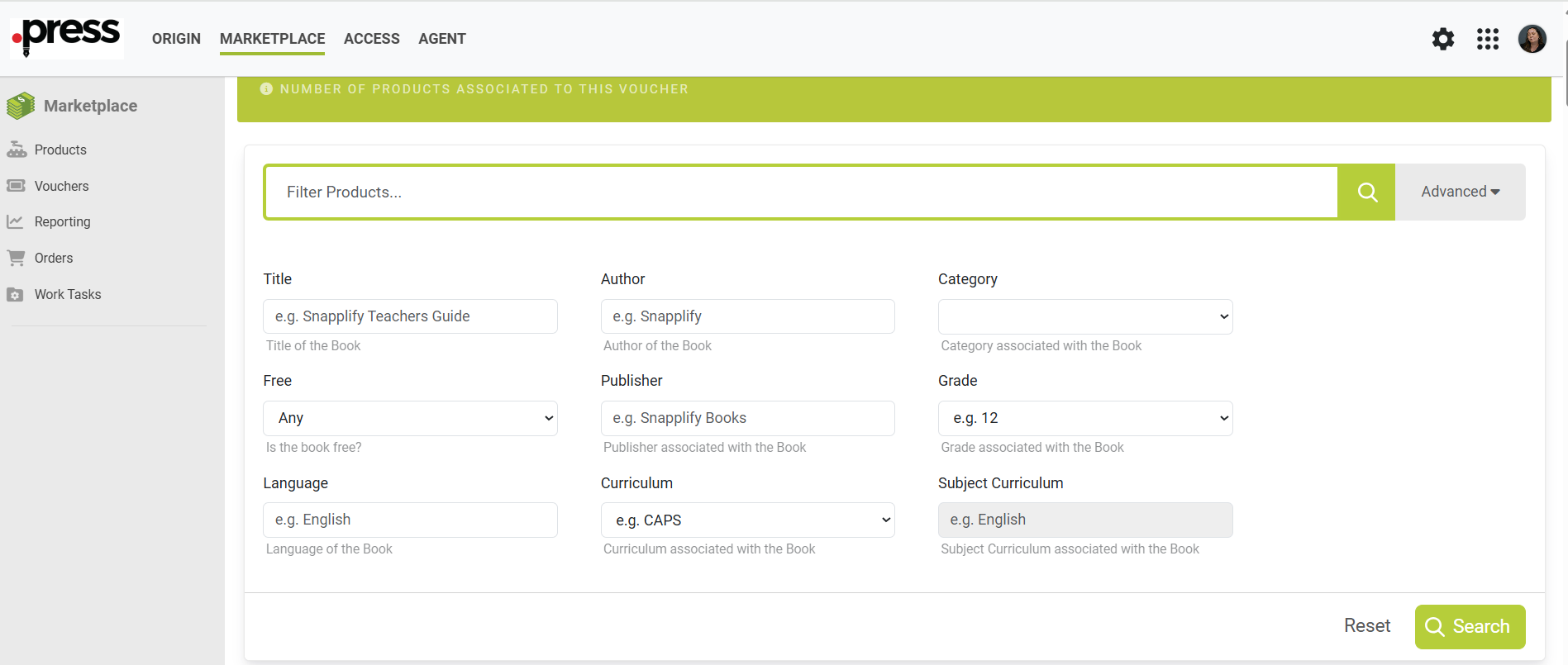
Search by the digital ISBN or use the Advanced Search to find the products you would like to add to the voucher.
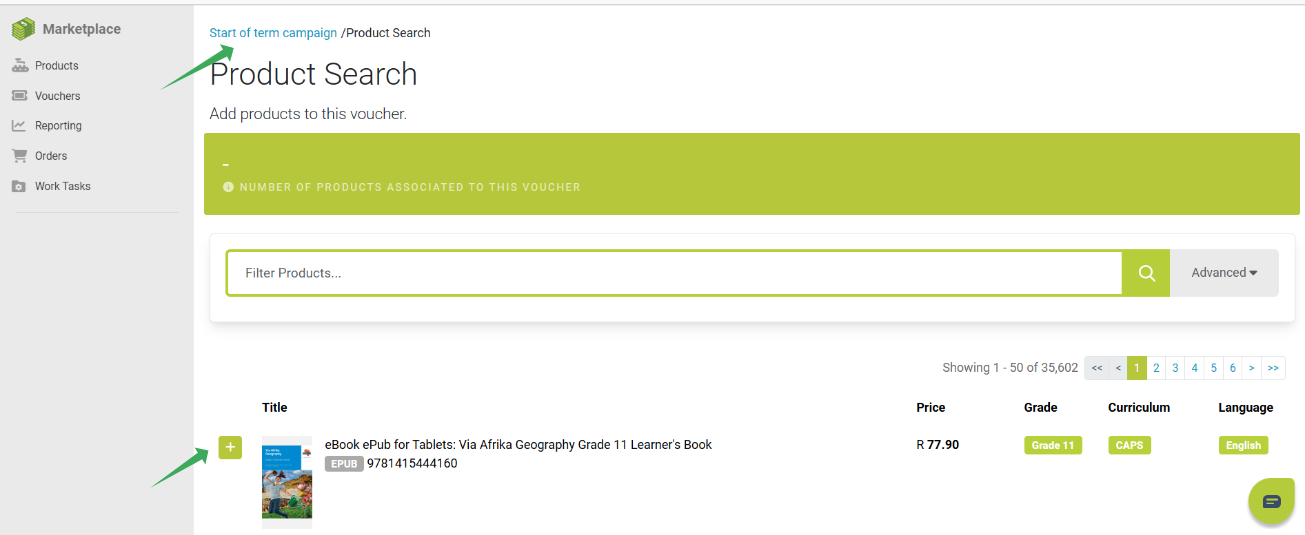
Click on the Add button to add the products to the voucher.
Use the breadcrumb navigation at the top of the page to return to your voucher
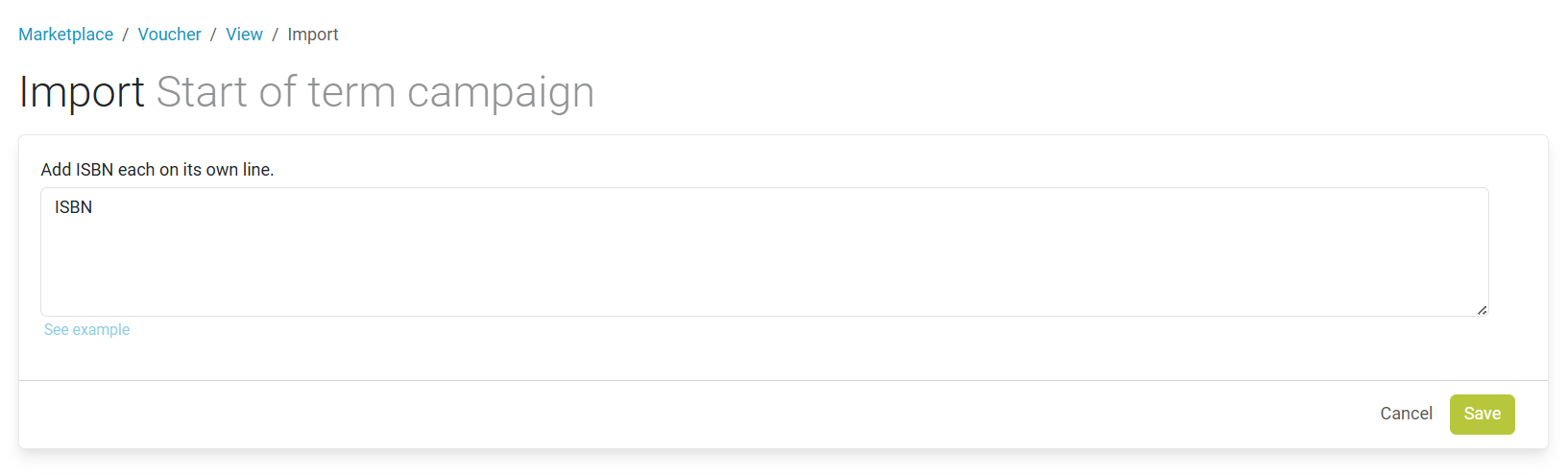
 To add more than one ISBN to a voucher, click on Import and paste in all the ISBN you would like to add to your voucher and click Save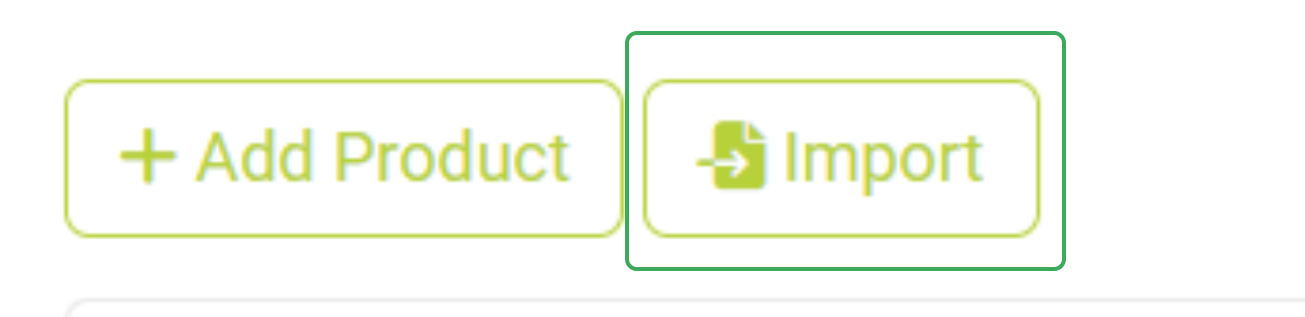
Step 5: Remove products from your voucher
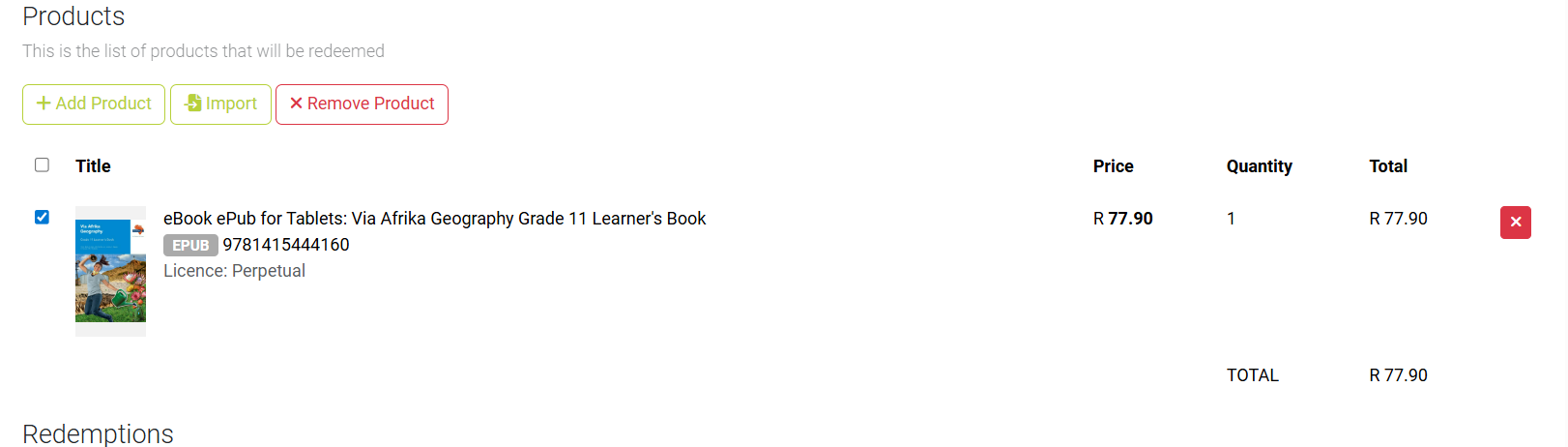
- Before activating your voucher ensure you review the products on your voucher
- Select the product you would like to remove from the voucher and click Remove
Step 6: Activate and distribute your voucher code(s)
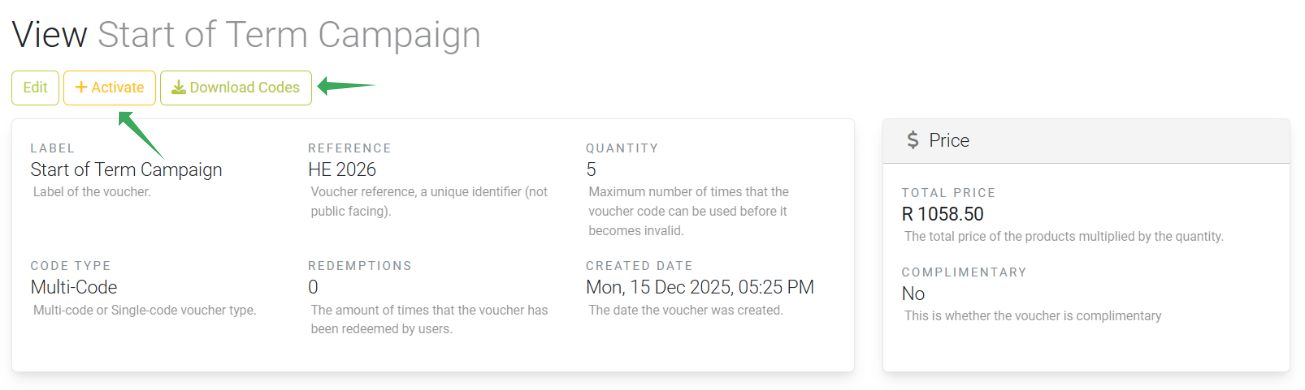
- Once all your products have been added to the voucher Activate your voucher
- Single-code: Send the single code to the user(s) to redeem.
- Multi-code: Select Download Codes to download a spreadsheet of all the codes and send these to your usersD
You can now distribute your vouchers via email, social media, printed cards, or directly to institutions and partners.
Need help? Use the live chat in the bottom right corner of your screen. Email us at help@snapplify.com or reach out via Whatsapp +27 60 011 8065.


