Use your catalogue in Origin to confirm that your latest titles have been uploaded, check that price updates are reflected and verify your content details. You can search for specific titles to quickly find the information you need.
View your catalogue
- Go to scs.snapplify.com
- Sign in with your Snapplify username and password.
- After signing in, you'll land on the Origin page.
- From the menu on the left, select Catalogue.
The Catalogue page displays your titles and their associated information.
Field | What you can check |
|---|---|
| Asset | The title name, ISBN and file format. |
| Price | The supplied price for each business model, allowing you to check pricing changes. |
| DRM Enabled |
|
| Categories | The categories assigned to the title. |
| Curriculum | The curriculum and subject associated with the title. |
| Curriculum Levels | The curriculum level assigned to the title. |
| Languages | The language of the title. |
| Uploaded | The date the title was uploaded to Snapplify, helping you confirm recent uploads. |
Search your catalogue
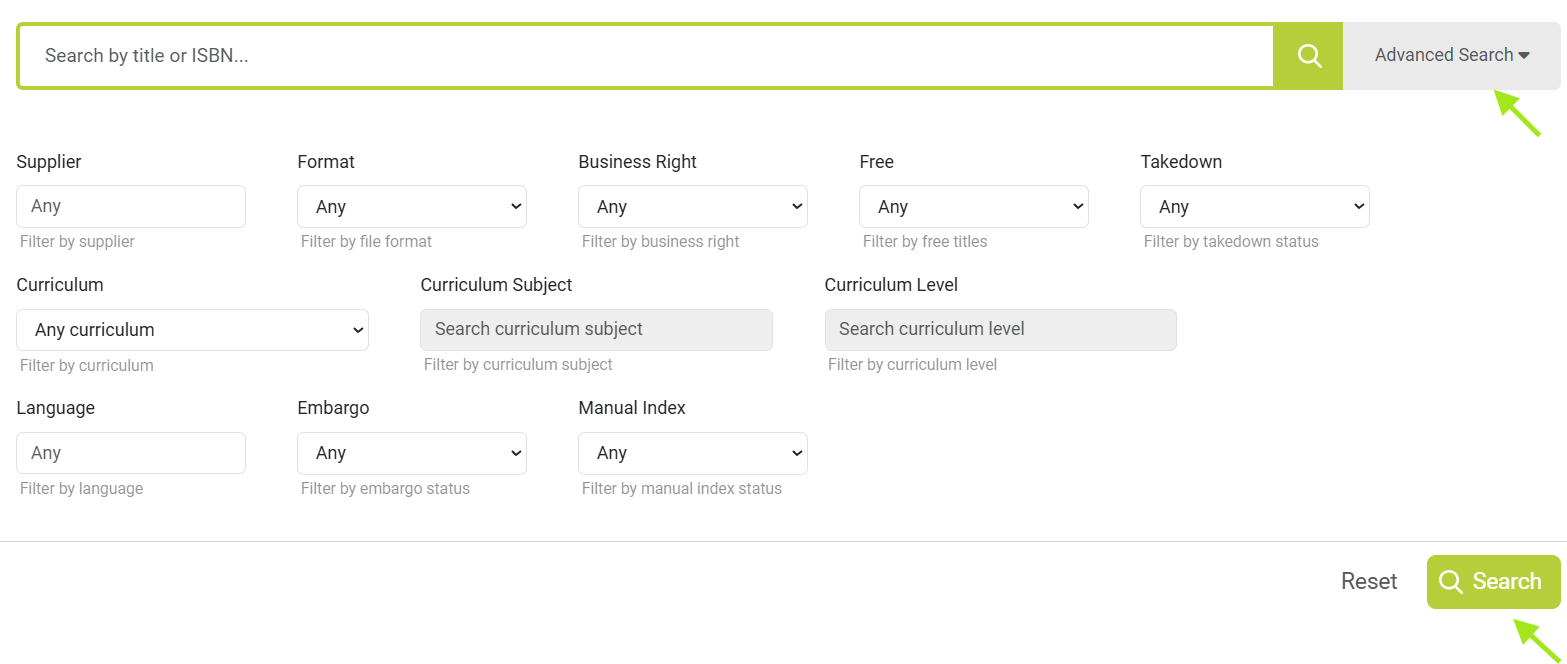
Use Advanced Search to find specific titles and check their details without scrolling through your catalogue.
You can refine your search by supplier, file format, business right, curriculum, subject, curriculum level or language. If you deliver content using multiple SFTP credentials, you can filter by supplier to check the titles delivered under each account.
Additional filters help you check free titles, takedown and embargo statuses, and whether titles have been indexed for Book Buddy.
Need help? Use the live chat in the bottom right corner of your screen. Email us at help@snapplify.com or reach out via Whatsapp +27 60 011 8065.


